iPhone 18 Pro & 18 Pro Max: 30 MUST-DO Settings First!
Long-form21:53People & Blogs
Published Sep 27, 2026, 7:00 AM · 2w ago

at home
18.6K subscribers · median 6.8K views
Screen recording · confirmed$Likely
Views
286
+1 views/hour
Likes
6
2.1% of views
Comments
1
0.35% of views
Checked every 12 h while the video is this age · last check 21h ago · next in 0 min. YouTube itself updates public counts with a short delay.
Views / hour now
1
measured 21h ago
Peak views / hour
1
21h ago
Avg views / day
15
since upload
First 24 hours
—
not tracked from upload
vs channel median
0.0×
Rank in channel
#20
of 21 tracked
Engagement
2.5%
likes + comments / views
Est. ad revenue
$2–$5
lifetime, $7–16 RPM
Views over time
1 readings · line: total views · bars: views gained per hour
Live tracking started
The chart fills in as FameX records new readings.
Description
✅ TORRAS MagSafe Car Mount : https://amzn.to/4ziphtx
---
💼Business / Partnerships: contact@àlamaison.tech
---
Just got the iPhone 18 Pro Max or iPhone 18 Pro? Here are the first things to do, from battery health and charging settings to the new variable aperture camera, the new Siri, Visual Intelligence, the Action button, Liquid Glass, separate alarm volume, call screening, CarPlay shortcuts and Apple Intelligence photo editing. 30 must-do settings to get the most out of your new iPhone on iOS 27.
---
00:00 - Intro
00:14 - Step 1: Make sure your iPhone is actually brand new
01:08 - Step 2: Update your software and your carrier settings
01:42 - Step 3: Make sure Find My points to your new iPhone
02:06 - Step 4: Set up charging for the way you actually use your phone
03:14 - Step 5: Turn on Adaptive Power
03:51 - Step 6: Clean up Background App Refresh
04:15 - Step 7: Tone down the Always On Display
04:33 - Step 8: Turn on the new Siri
05:58 - Step 9: Pick a Siri voice you actually like
06:19 - Step 10: Turn on advanced dictation
06:55 - Step 11: Master the variable aperture camera
08:10 - Step 12: Explore the other pro controls
09:14 - Step 13: Set up your Photographic Styles
09:58 - Step 14: Choose your default focal length
10:26 - Step 15: Try the front camera and Dual Capture
11:30 - Step 16: Get comfortable with the Camera Control button
11:55 - Step 17: Use Visual Intelligence
12:34 - Step 18: Make the Action button actually useful
13:21 - Step 19: Swap the buttons on your Lock Screen
13:55 - Step 20: Customize your Lock Screen and Home Screen
14:50 - Step 21: Adjust the Liquid Glass effect
15:20 - Step 22: Enjoy the smaller Dynamic Island
15:42 - Step 23: Finally separate your alarm and ringtone volume
16:16 - Step 24: Screen unknown callers and let your iPhone wait on hold for you
17:01 - Step 25: Create Shortcuts in plain English, and set up CarPlay
18:47 - Step 26: Edit your photos with Apple Intelligence
19:46 - Step 27: Add your loyalty cards to Wallet
20:13 - Step 28: Organize Safari your way
20:56 - Step 29: Tune your AirPods with the equalizer
21:21 - Step 30: Stress test your thermals
21:42 - Outro
---
My videos include affiliate links. Using these links costs you nothing extra but earns me a small commission.
Details
- Published
- Sep 27, 2026, 7:00 AM
- Length
- 21:53 (1,313 s)
- Format
- Long-form
- Category
- People & Blogs
- Audio language
- EN
- Quality
- HD
- Captions
- No
- Made for kids
- No
- Licensed content
- Yes
- Video ID
- yo5eg1ivBQw
More from at home
 iPhone Duo: Watch This Before You Pre-Order142 views · 18h ago
 Hidden iPhone Features Apple Doesn’t Show You77.9K views · 1d ago · +3.5K/h
 iOS 27: Hidden Features You’ll Use Every Single Day7.8K views · 4d ago · +25/h
 How to Use Your New iPhone: Full Beginner's Guide447 views · 6d ago · +5/h
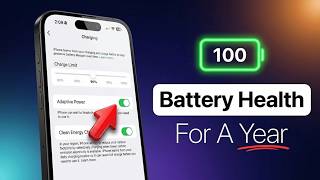 The ONLY Way To Keep Your iPhone Battery at 100%12.8K views · 1w ago · +34/h
 iPhone 18 Pro/Max - Camera Settings for Quality Photos3.6K views · 1w ago · +5/h
 Apple Just Won the AI War7.6K views · 1w ago · +2/h
 Apple Is NOT Done (China Phone Video Debunked)510 views · 1w ago · +1/h
Statistics from the YouTube Data API, tracked by FameX. Views per hour, revenue and comparisons are FameX estimates.